



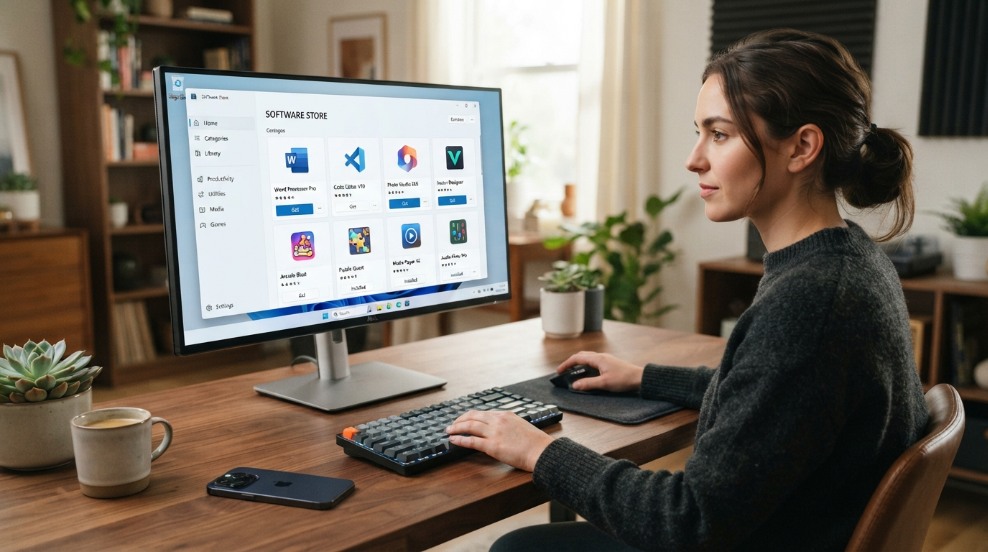
PC App Store sounds like a generic term for a place to download Windows software, but searchers should be careful because it can refer to a specific third-party website and application as well as the general idea of an app store for a PC.
The safest default for most Windows users is Microsoft’s built-in Microsoft Store or the official website of the software developer. If you are considering a third-party PC App Store, verify the publisher, download source, permissions, reputation, and uninstall behavior before installing it.
What Is PC App Store?
A PC app store is a software catalog that helps users discover and install programs on a Windows computer. In a general sense, Microsoft Store is the official app marketplace built into modern Windows versions.
There is also a website branded PC APP STORE, powered by Fast Corporation, that offers its own downloadable software platform. Its website describes a catalog of apps, games, productivity tools, personalized recommendations, and automatic updates.
Because the phrase PC App Store can refer to more than one thing, always check the exact website and publisher before downloading anything.
Is PC App Store the Same as Microsoft Store?
No. A third-party product called PC App Store is not the same service as Microsoft Store.
Microsoft Store is Microsoft’s official Windows marketplace. It is integrated into Windows and is used to distribute apps and games through Microsoft’s ecosystem.
Third-party software stores are operated by separate companies. Their app-review processes, installers, privacy practices, advertising models, update systems, and support policies can differ.
Why People Search for a PC App Store
Windows users commonly want one place where they can find software without visiting dozens of websites. A software store can make installation and updates easier.
People may search for a PC app store when they want:
Free Windows apps
PC games
Productivity software
Media players
Photo or video tools
Utilities
Communication apps
Automatic software updates
An alternative to downloading individual installers
Convenience is useful, but download safety should come first.
How to Download PC Apps Safely
Use Microsoft Store When Available
For many mainstream Windows applications, Microsoft Store is a straightforward starting point. Open the Store from Windows, search for the application, check the publisher, and review the listing before installing.
Use the Developer’s Official Website
If an app is not available through Microsoft Store, search for the software developer’s official website.
Be careful with sponsored search results and download portals. The first result is not always the developer’s official page.
Verify the Publisher
Before running an installer, check the publisher shown by Windows. A familiar app name paired with an unfamiliar or misspelled publisher deserves additional investigation.
Scan Suspicious Downloads
Keep Microsoft Defender or another reputable security product enabled. If Windows or your security software warns about an installer, do not dismiss the warning automatically.
Create a Restore Point for Riskier Changes
For utilities that make deeper system changes, advanced users may consider creating a restore point or ensuring important files are backed up before installation.
PC App Download Safety Checklist
Use this checklist before installing software from an unfamiliar source:
1. Is this the official developer or an authorized store?
2. Is the domain spelled correctly?
3. Does the download use HTTPS?
4. Is the publisher clearly identified?
5. Does Windows show a security warning?
6. Is the installer asking for permissions that make sense for the app?
7. Does the installer offer unrelated software?
8. Can the app be removed normally through Windows Settings?
9. Are privacy and support details easy to find?
10. Are independent security reports or user complaints raising concerns?
One unusual detail does not always prove an application is malicious. Several warning signs together are a strong reason not to continue.
Potential Risks of Third-Party PC App Stores
Bundled Software
Some third-party installers may offer additional applications, browser extensions, utilities, or advertising components. Read every installation screen instead of repeatedly clicking Next.
Unwanted Background Processes
An app store may run background services for updates, notifications, recommendations, or advertising. This can affect startup time, memory use, or system performance.
Aggressive Notifications
Some users install a utility for one purpose and later receive frequent pop-ups or software recommendations. Review notification permissions if an app becomes intrusive.
Outdated Installers
A third-party catalog may not always have the latest version of every application. An old installer can lack important bug fixes or security patches.
Imitation Apps
Popular software names can be copied or imitated. Always confirm the developer or publisher before installing an app that handles passwords, payments, files, messages, or sensitive data.
Security Concerns
Independent online discussions have raised concerns about software distributed under the PC App Store name. User reports alone do not establish a technical verdict for every version, but they are a reason to verify the current installer carefully rather than assuming safety from branding alone.
If your security software identifies a download as unwanted or malicious, stop the installation and investigate the exact detection.
How to Check Whether a PC App Is Safe
Check the Digital Signature
Right-click the downloaded file, open Properties, and look for digital signature information where available. A valid signature helps identify the publisher, although a signature alone is not a guarantee that software is trustworthy.
Check the File With Security Software
Scan the installer before opening it. Windows Security allows users to scan files and folders through the context menu on supported systems.
Research the Exact Filename and Publisher
Search for the exact software name, publisher, and filename. Look for consistent information across the developer’s website, established security vendors, and reputable technical communities.
Review Installation Behavior
Be suspicious if a simple application requests unusual system access, disables security settings, changes browser preferences without clear consent, or installs additional programs unexpectedly.
Monitor the PC After Installation
After installing unfamiliar software, watch for:
New browser extensions
Changed search engines
Unexpected startup programs
Frequent ads or pop-ups
High CPU or memory usage
Unknown background processes
Security warnings
Programs you did not choose to install
If these appear immediately after installation, investigate the new software.
How to Remove an Unwanted PC App Store
If you installed a third-party PC App Store and no longer want it, start with normal Windows removal methods.
Step 1: Open Installed Apps
Open Windows Settings, go to Apps, then Installed apps. Menu wording can vary slightly by Windows version.
Step 2: Find the Program
Search for the application name. Check the publisher if several similarly named programs appear.
Step 3: Choose Uninstall
Use the Uninstall option and follow the prompts. Read each screen so you do not accidentally keep optional components.
Step 4: Restart the Computer
Restarting can close remaining processes and complete removal steps.
Step 5: Run a Security Scan
Open Windows Security and run an appropriate scan. If you have reason to suspect malware, consider a more thorough scan rather than only a quick check.
Step 6: Check Startup Apps and Browser Extensions
Review startup programs and browser extensions for items you do not recognize. Remove only items you can identify as unwanted.
Step 7: Change Important Passwords if Credentials May Be at Risk
If you have credible evidence that malware or credential-stealing software was present, use a clean device where possible to change important passwords. Enable multi-factor authentication on important accounts.
Best PC App Store Alternatives
Microsoft Store
Microsoft Store is the natural first choice for users who want an integrated Windows app marketplace. It provides a central place for supported apps and games.
Official Developer Websites
For professional tools and specialized software, the developer’s official website is often the best source. This is particularly useful for apps such as browsers, creative software, hardware utilities, and developer tools.
Windows Package Manager
More technical users can use Windows Package Manager, commonly accessed with the winget command, to search for and install supported packages from the command line.
A package manager can make software installation and updates efficient, especially when setting up multiple applications on a new PC.
Game Stores
For PC games, established game marketplaces and publisher launchers may provide better libraries, updates, cloud saves, and account features than a generic software store.
Read More: Yellow Spot in Mobile Screen Causes and Fixes
PC App Store vs Microsoft Store
The main difference is ownership and integration. Microsoft Store is operated by Microsoft and integrated with Windows. A third-party PC App Store is separately operated and may use its own installer, catalog, update system, advertising model, and policies.
For users who simply need common Windows applications, starting with Microsoft Store or the developer’s official website reduces unnecessary uncertainty.
Can a PC App Store Make Your Computer Faster?
An app store itself should not be expected to make a slow computer faster.
Computer performance depends on factors such as available storage, memory, processor workload, startup programs, background services, malware, operating-system health, and hardware condition.
Installing additional optimization utilities can sometimes add more background processes instead of improving performance.
If your PC is slow, start by checking Task Manager, storage space, startup applications, Windows updates, malware scans, and hardware limitations.
What to Do If Your PC Became Slow After Installing an App
Use this quick troubleshooting sequence:
1. Restart Windows.
2. Open Task Manager and check CPU, memory, disk, and network usage.
3. Identify unfamiliar processes that started with the new software.
4. Disable unnecessary startup apps.
5. Uninstall software that caused the issue.
6. Run a security scan.
7. Install pending Windows updates.
8. Check available disk space.
9. Test the computer again after restarting.
Do not randomly delete system files or registry entries. That can create additional Windows problems.
Frequently Asked Questions
What is the best app store for PC?
For most Windows users, Microsoft Store is the simplest official option. For software not available there, use the developer’s official website or another well-established distribution platform.
Is PC App Store free?
The PC APP STORE website currently promotes a free download. That does not mean every app, service, or offer available through a third-party platform will necessarily be free.
Is PC App Store Microsoft software?
A third-party service branded PC App Store is not Microsoft Store. Check the publisher and website before installing it.
Can I install Android apps from a PC app store?
That depends on the platform. A normal Windows software store does not automatically make every Android app compatible with Windows. Some applications require a supported Windows version, web app, emulator, or other compatibility solution.
How do I know if a download site is fake?
Look for misspelled domains, copied branding, unclear publisher details, excessive download buttons, forced browser notifications, unrelated bundled software, suspicious permissions, and security warnings.
Should I disable antivirus to install an app?
Generally, no. If an installer requires you to disable security software, verify the software and publisher carefully before proceeding. Do not disable protection simply to bypass a warning you do not understand.
Final Thoughts
PC App Store can be a confusing search because the phrase sounds generic while also being used by a specific third-party platform. Before downloading anything, identify exactly which store you are visiting.
For everyday Windows software, Microsoft Store and official developer websites are sensible starting points. If you choose another PC app store, check the publisher, permissions, installer behavior, reputation, and security warnings first. A few extra minutes of verification can prevent hours of cleanup later.
